
Online store setup
- Enable online store within Simmer Admin
- Modifiers theme block
- Delivery options theme block
- QR code ordering
- Process all online orders as tickets
- Limitations
Enable online store within Simmer Admin
From the Simmer Admin, navigate to Settings > Online store. Then click Enable.
Modifiers theme block
Add products to the online store channel
Add your food and drink products to the Online Store sales channel.
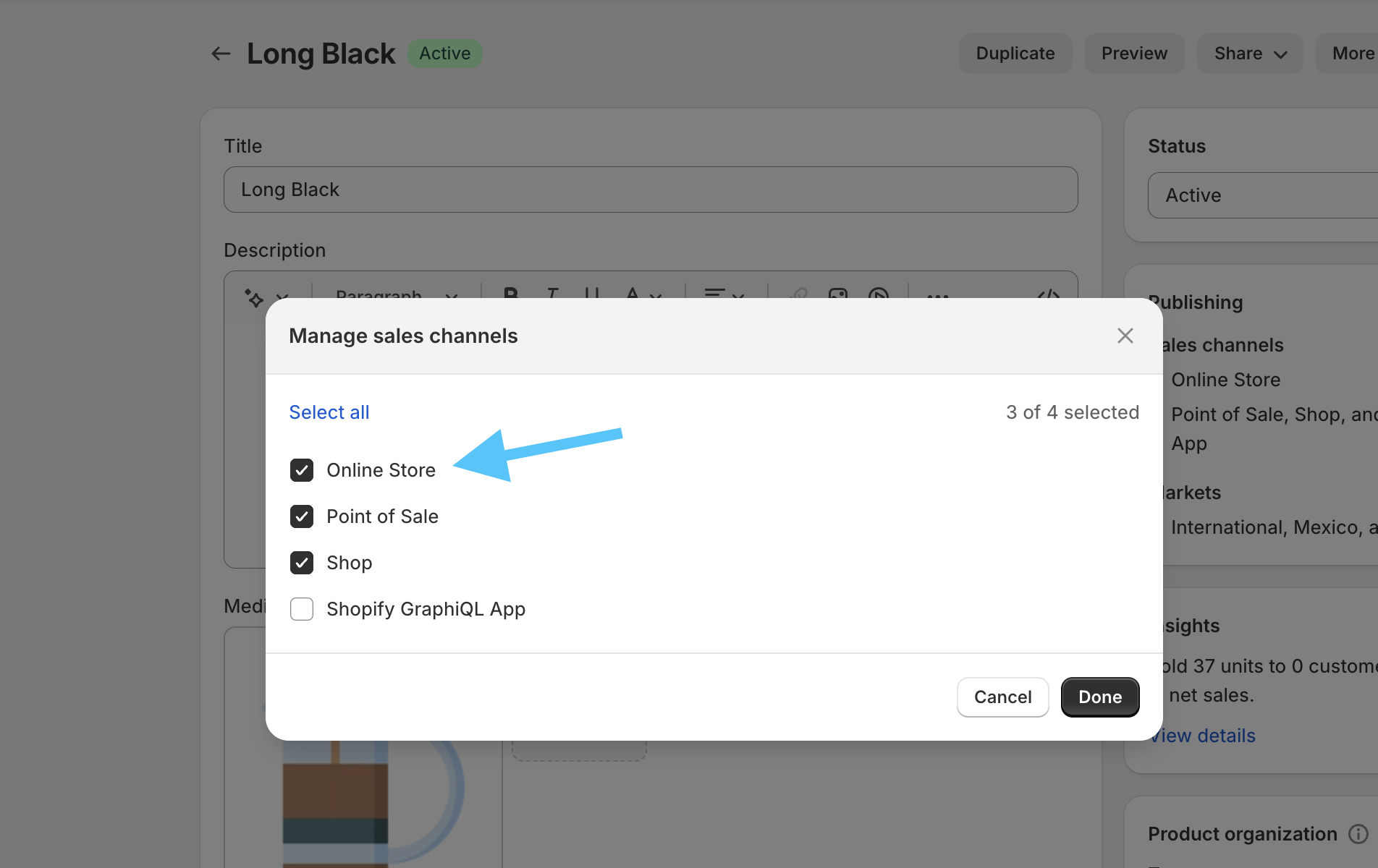
Add products to Simmer collections
You’ll need to add each of the food and drinks products you wish to offer online to at least one of the Simmer collections, such as “Simmer: Products” or your Simmer folder collections.
You must also ensure that any Simmer Collections that you plan to use on the online store are also added to the Online Store sales channel, this includes the “Simmer: Modifiers” collection if you plan to use modifiers on your products.
This helps Simmer determine which are regular products and which are food and drinks, or modifiers so we can exclude them from standard postal shipping.
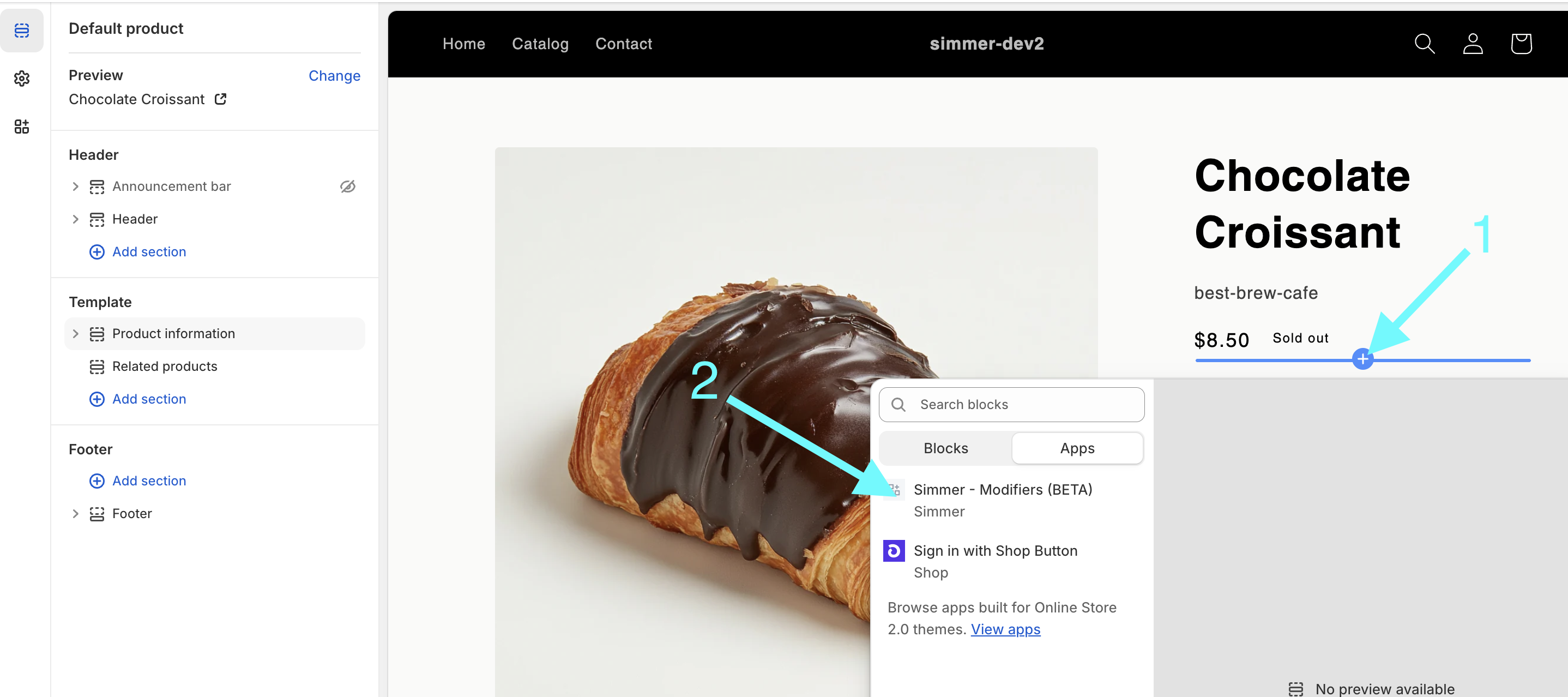
Add modifier selection theme block to product page
Next you’ll need to add the Product Modifiers block to the product page.
From the Shopify Admin, navigate to Online Store > Themes and select Customize for the theme you want to add the block to.
Then navigate to the Product page section.
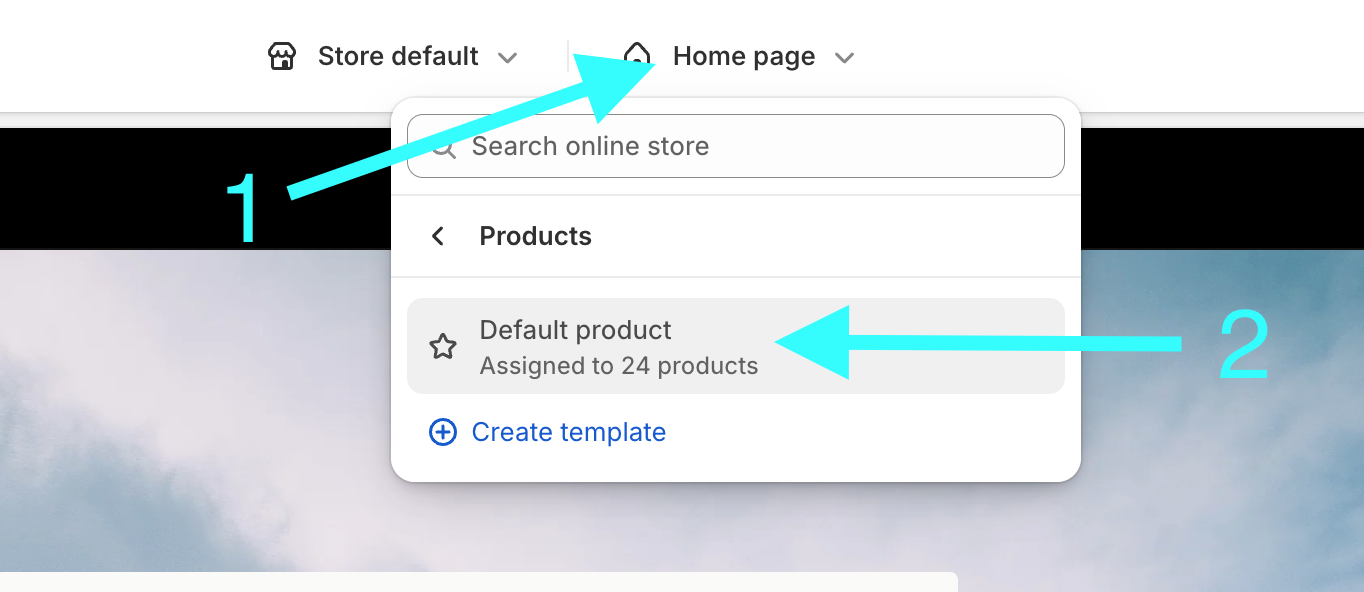
Add the Simmer - Modifiers block.
Delivery options theme block
Add a full address to your store location
Your pickup location must have a full address added to it in order for the pickup in store option to be work correctly.
From the Shopify Admin, navigate to Settings > Locations and select the location that you want to add the address to.
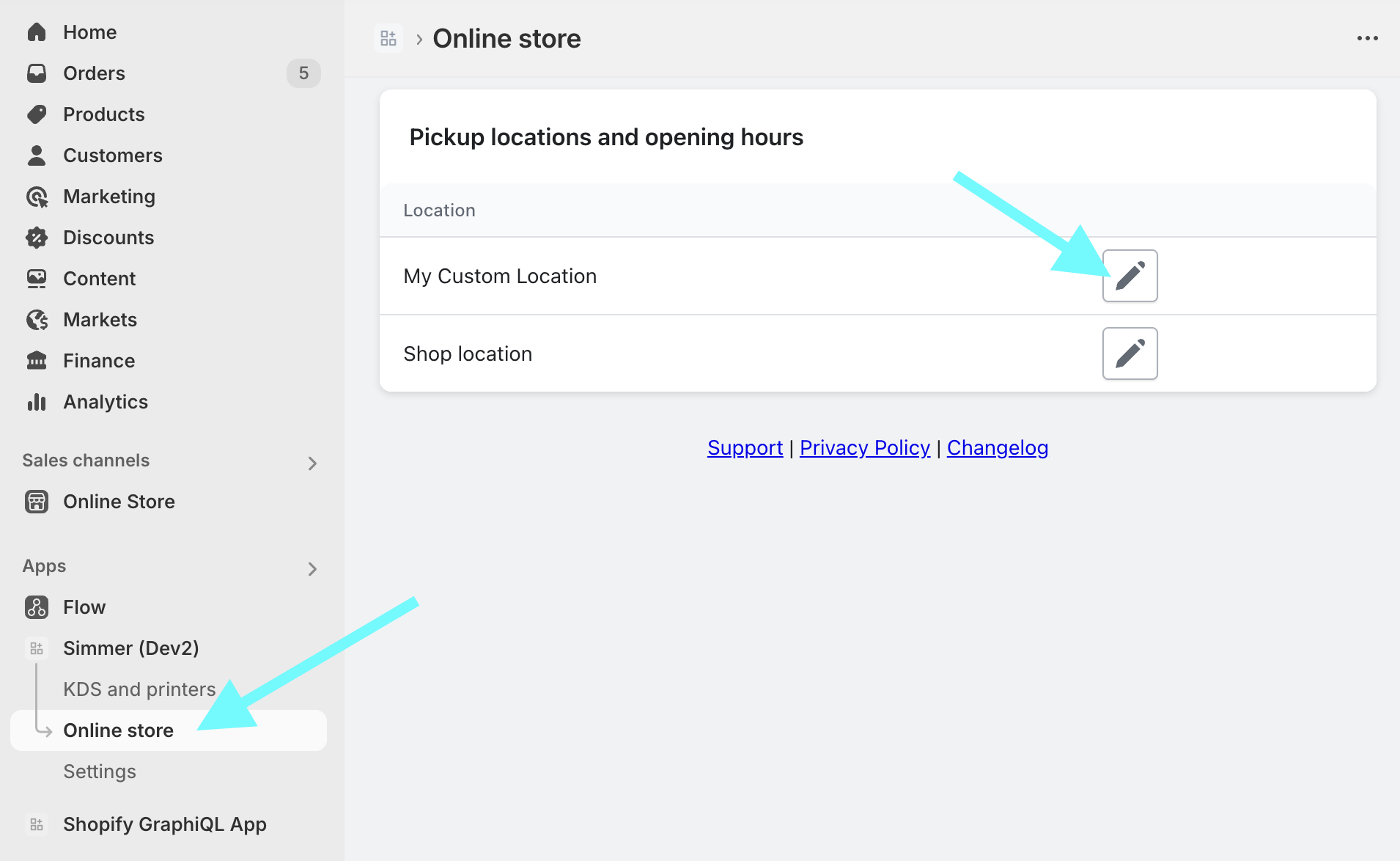
Add store opening times
From the Simmer Admin, navigate to Online store and add your store opening times by selecting each of your locations.
Add pickup shipping method
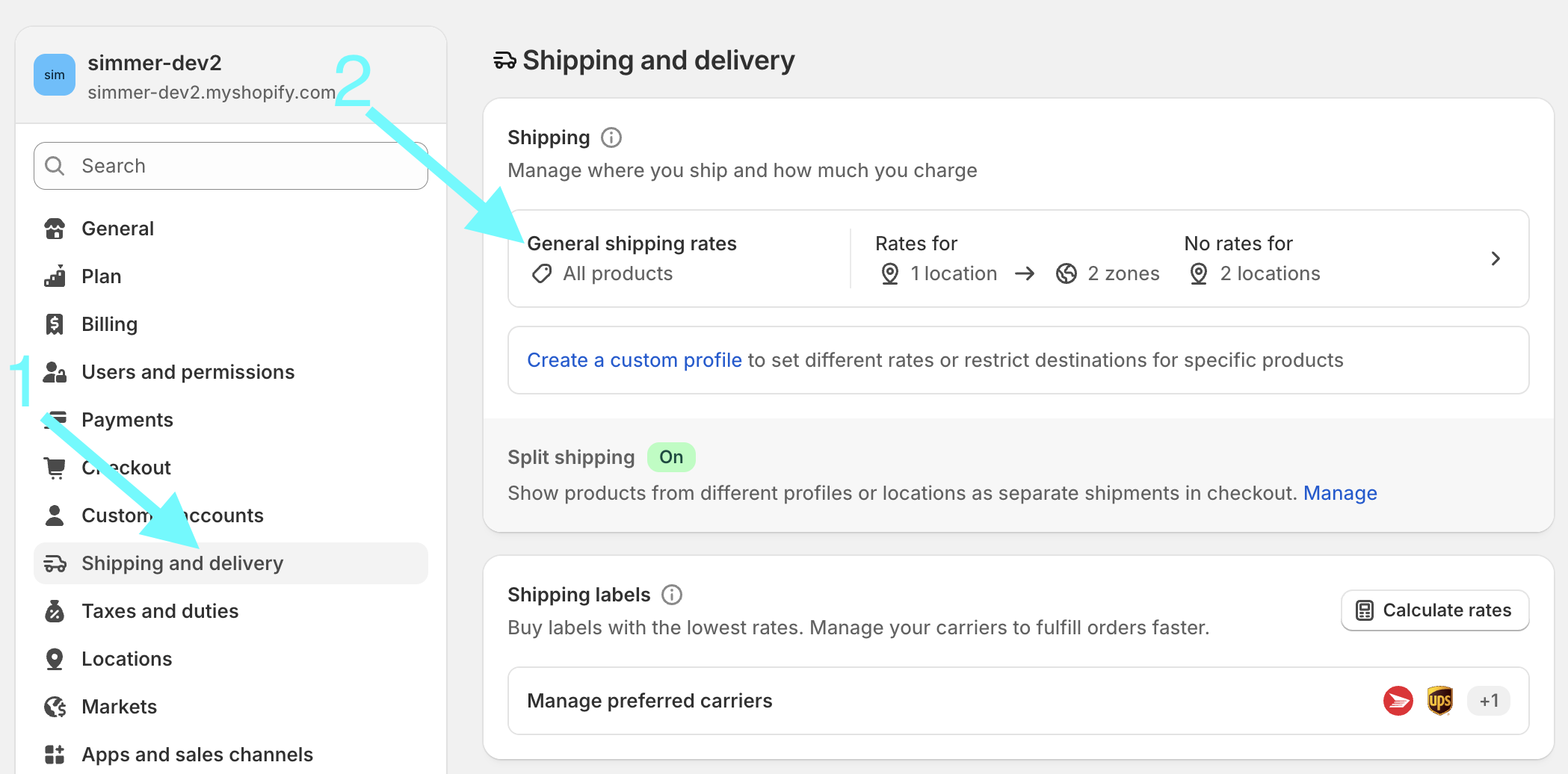
From the Shopify Admin, navigate to Settings > Shipping and delivery and select the shipping profile that you want to add the pickup shipping method to, by default this is called General shipping rates.
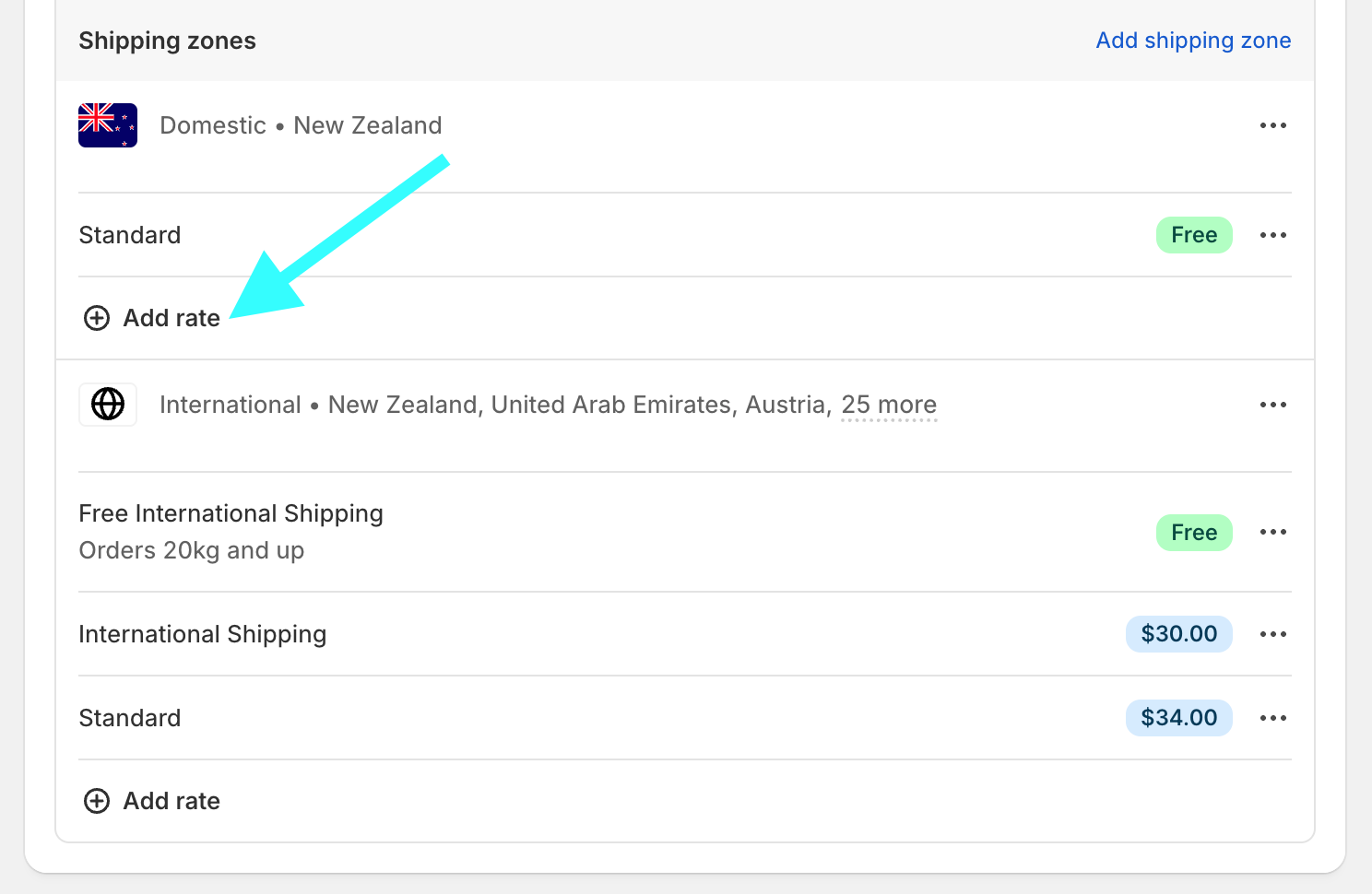
Then click Add rate
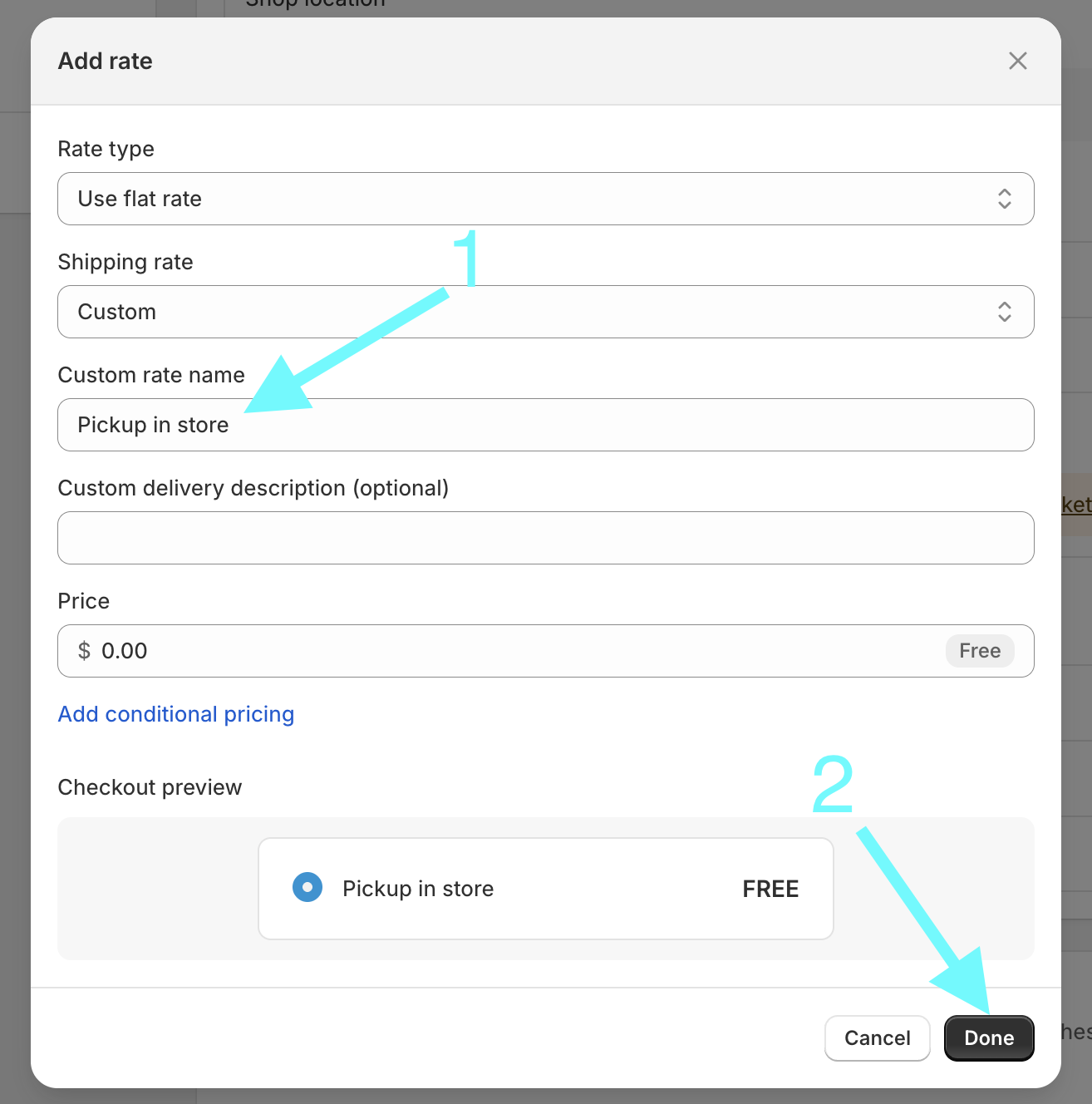
Then enter a custom rate name, this must be called exactly Pickup in store and click Done. This is required for Simmer to identify the pickup shipping method.
Then click Save at the top of the page.
Add delivery method and date picker to cart page
From the Shopify Admin, navigate to Online Store > Themes and select Customize for the theme you want to add the block to.
Then navigate to the Cart page section.
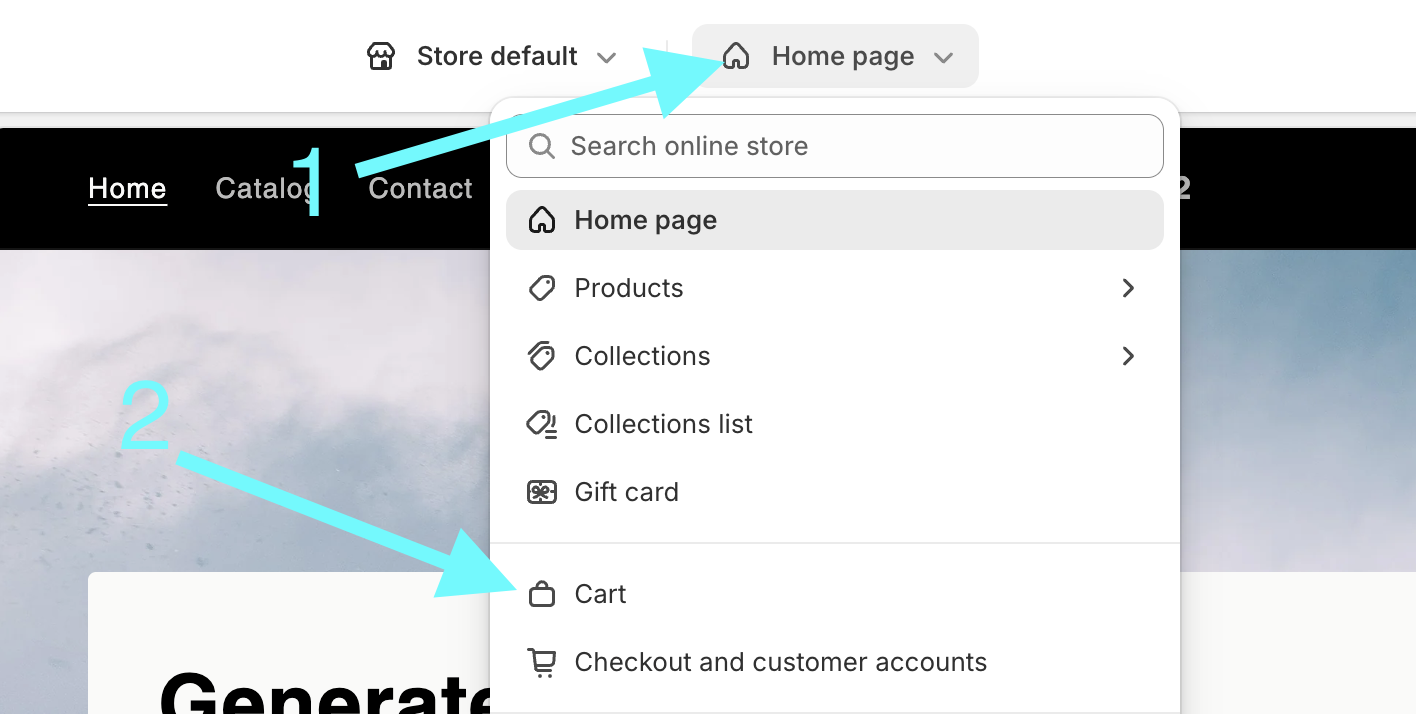
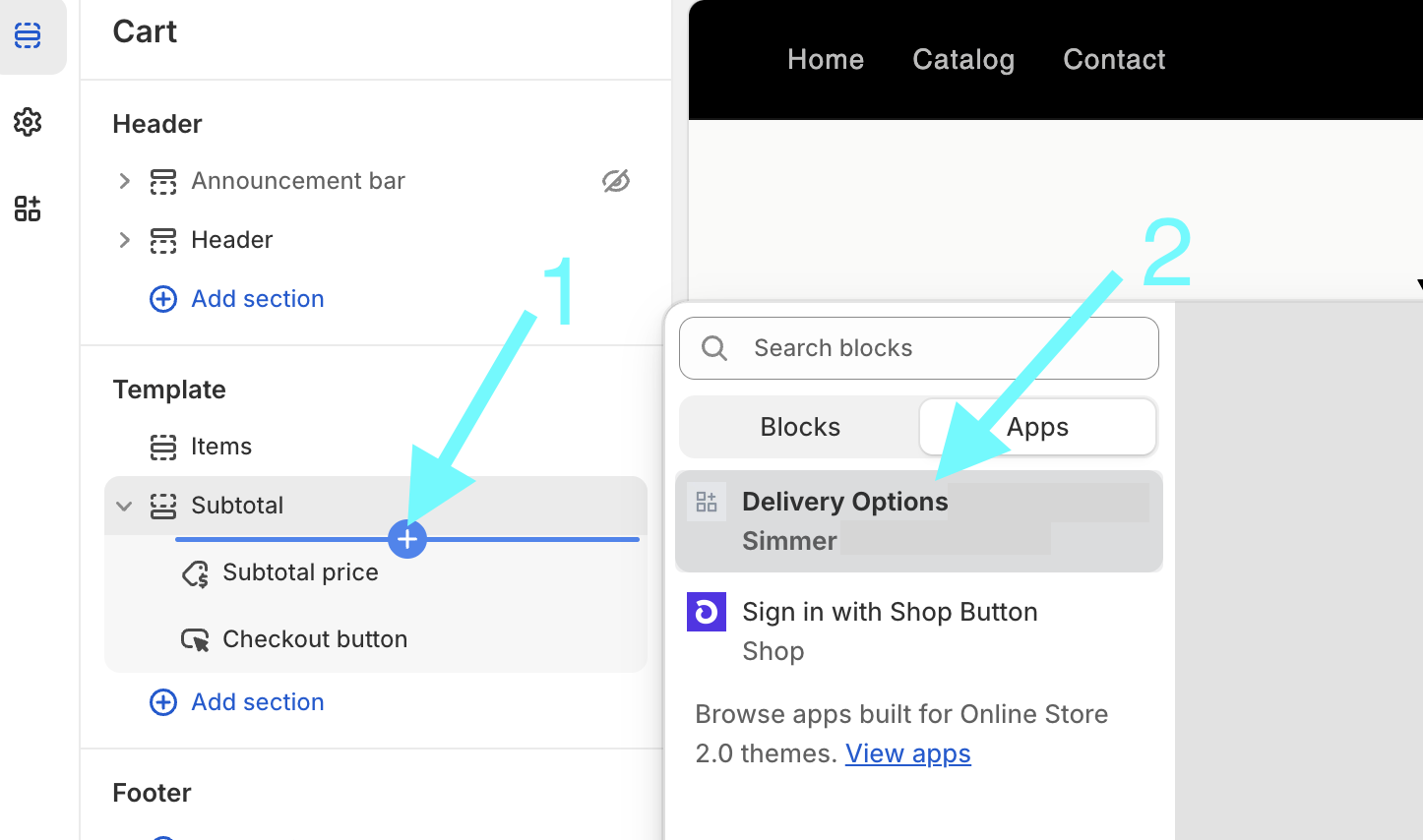
Then add the Simmer Delivery Options cart block to the Subtotal section of the cart page.
QR code ordering
You can use our QR code ordering feature to allow customers to make dine in orders via the online store. The QR code must contain the following components:
- simmer_location - the ID of the Shopify location that you want the tickets associated with, you can find this in Shopify Admin > Settings > Locations, select the location you’d like to use, then you will find the ID in the URL, e.g.
.../settings/locations/1234567890where1234567890is the ID. - simmer_name - this is used to populate the “Name” field of the resulting Simmer ticket, you can use this to identify the table. E.g. “T1”
The complete URL to be encoded as a QR code would look something like this:
https://<YOUR_ONLINE_STORE_DOMAIN>?simmer_location=1234567890&simmer_name=T1
QR code ordering requires enabling the Simmer app theme block and adding a dine in shipping method, instructions for these steps below.
Enable the Simmer app theme block
From the Shopify Admin, navigate to Simmer > Online store and scroll down to the bottom of the page where you will find a sections titled Simmer app theme block, click Activate in theme.
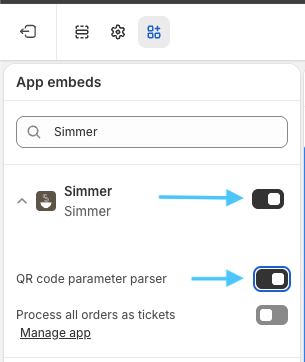
You will be taken to your currently active online store theme where you will be able to toggle on/off the Simmer app theme block.
- QR code parameter parser: toggle this on to use QR code ordering.
Add dine in shipping method
From the Shopify Admin, navigate to Settings > Shipping and delivery and select the shipping profile that you want to add the dine in shipping method to, by default this is called General profile.
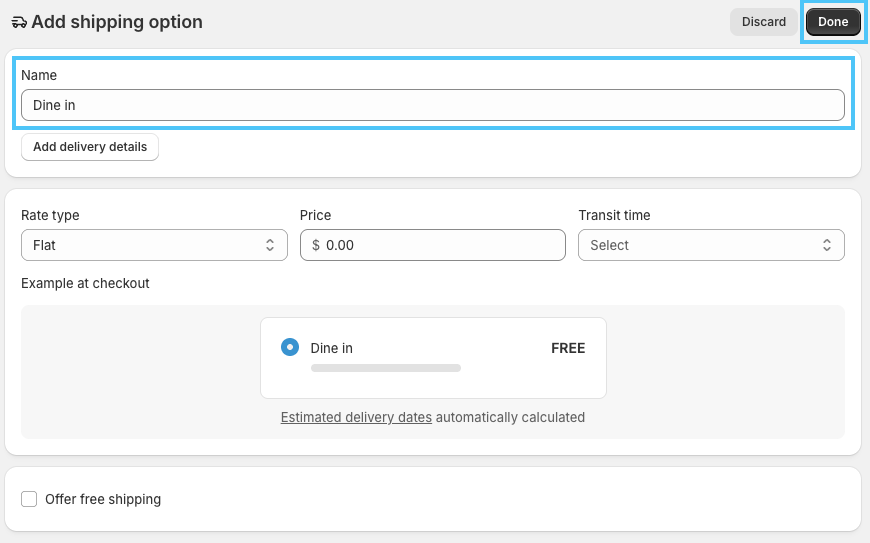
Then click Add shipping option
Enter a custom shipping option name, this must be called exactly Dine in and click Done. This is required for Simmer to identify the dine in shipping method.
Then click Save at the top of the page.
Process all online orders as tickets
You can have Simmer process all online orders as tickets to allow them to be displayed on a KDS or printed ticket.
Enable the Simmer app theme block
From the Shopify Admin, navigate to Simmer > Online store and scroll down to the bottom of the page where you will find a sections titled Simmer app theme block, click Activate in theme.
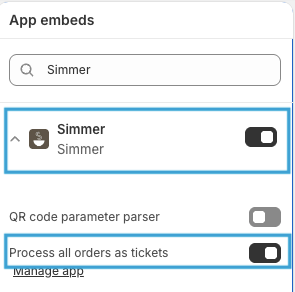
You will be taken to your currently active online store theme where you will be able to toggle on/off the Simmer app theme block.
- Process all orders as tickets: enable this so all orders that come in via your online store will be processed by Simmer and turned into tickets.
Update the “Auto send” setting
From the Shopify Admin, navigate to Simmer > Settings where you will find a sections titled Auto send, update this setting to On payment.
Limitations
Accelerated checkout
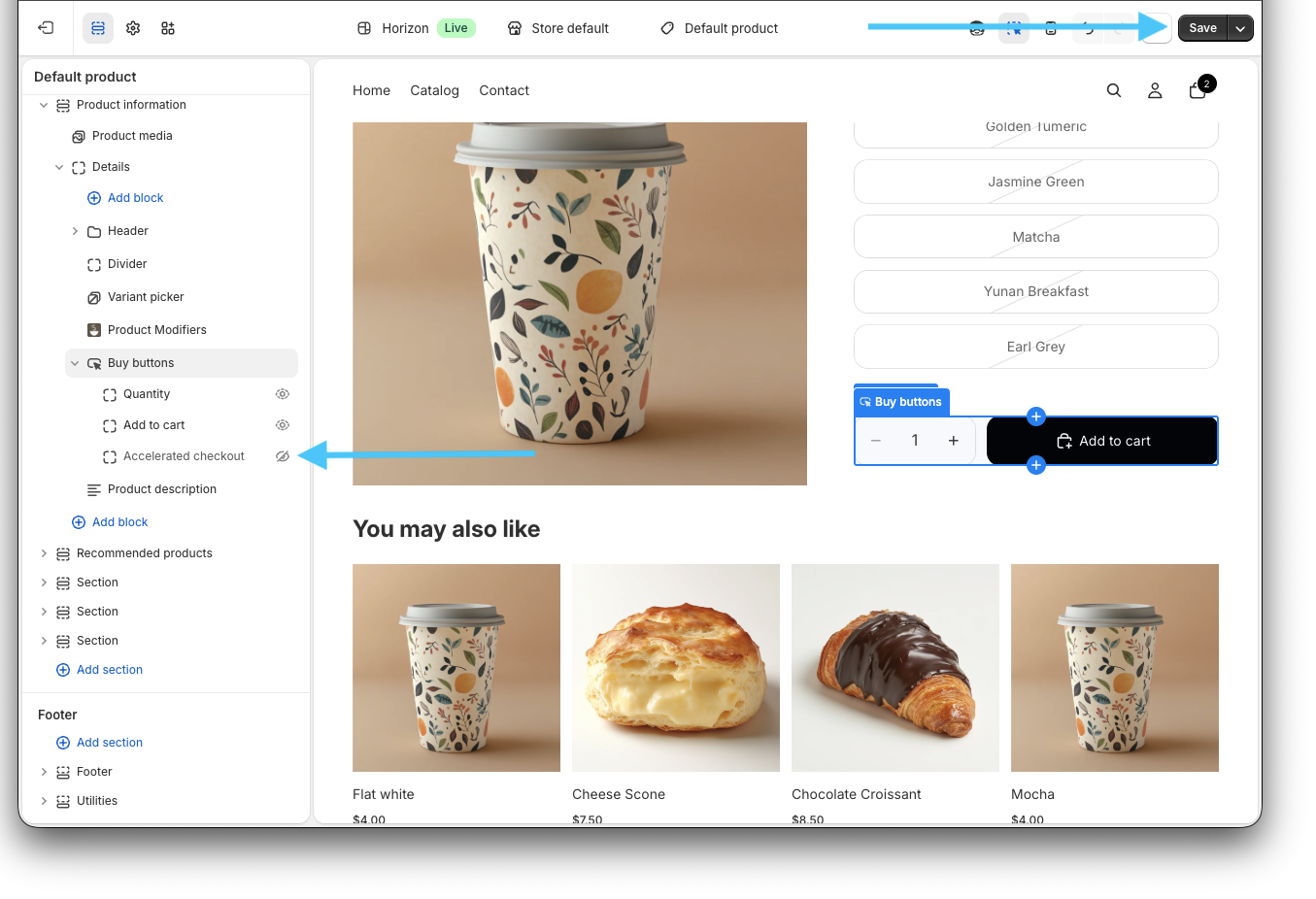
Accelerated checkout is not supported for online store orders as this bypasses the Simmer theme blocks.
- Go to your Shopify Admin
- Click Online Store > Themes
- Click Edit theme next to your live theme
- Go to the Product page template in the theme editor
- Click on the Product Information section
- Expand the Buy buttons section and hide the Accelerated checkout button
- Click Save
This also includes the Quick add option on Product cards which also bypasses the Simmer theme blocks by adding products directly to the cart.
- Go to your Shopify Admin
- Click Online Store > Themes
- Click Edit theme next to your live theme
- Click Theme settings in the top right
- Expand the Product cards section
- Disable the Quick add option
- Click Save

Drawer cart
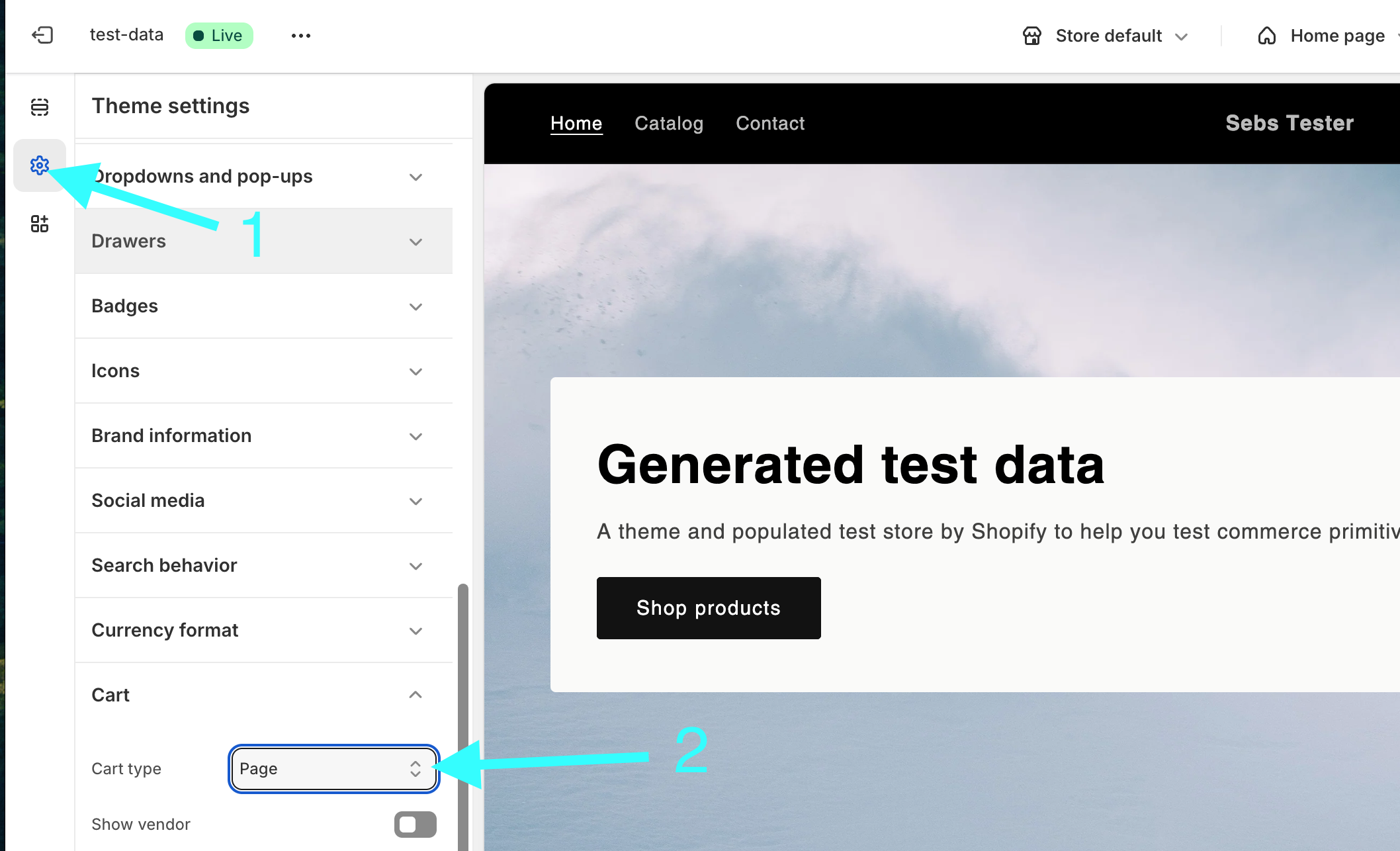
The drawer cart is not supported because it is not possible to add the Simmer delivery block to it.
Troubleshooting
If you’re having trouble with the online store, please email help@simmerpos.com.