Coursing
You can use courses to help with meal pacing in your restaurant.
How to setup coursing
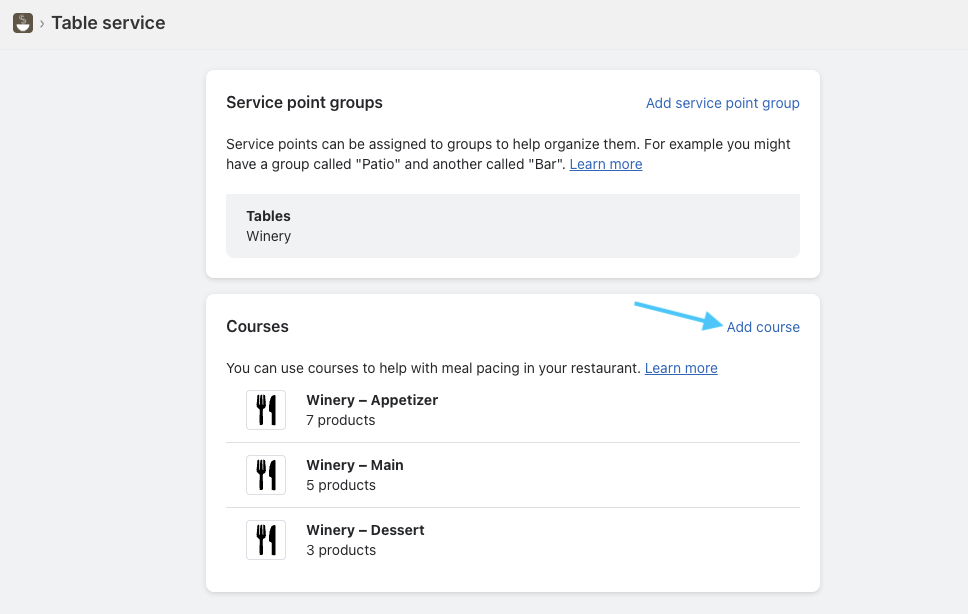
First step is to create courses:
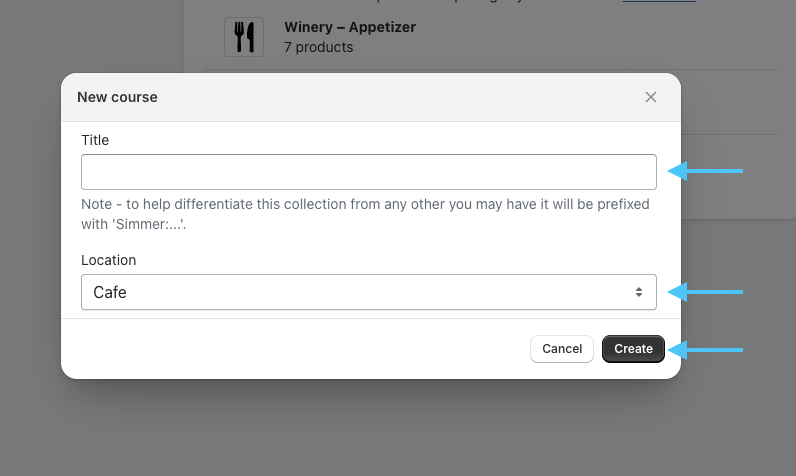
Then give your course a Title, select a Store Location for it to be associated with and click Create:
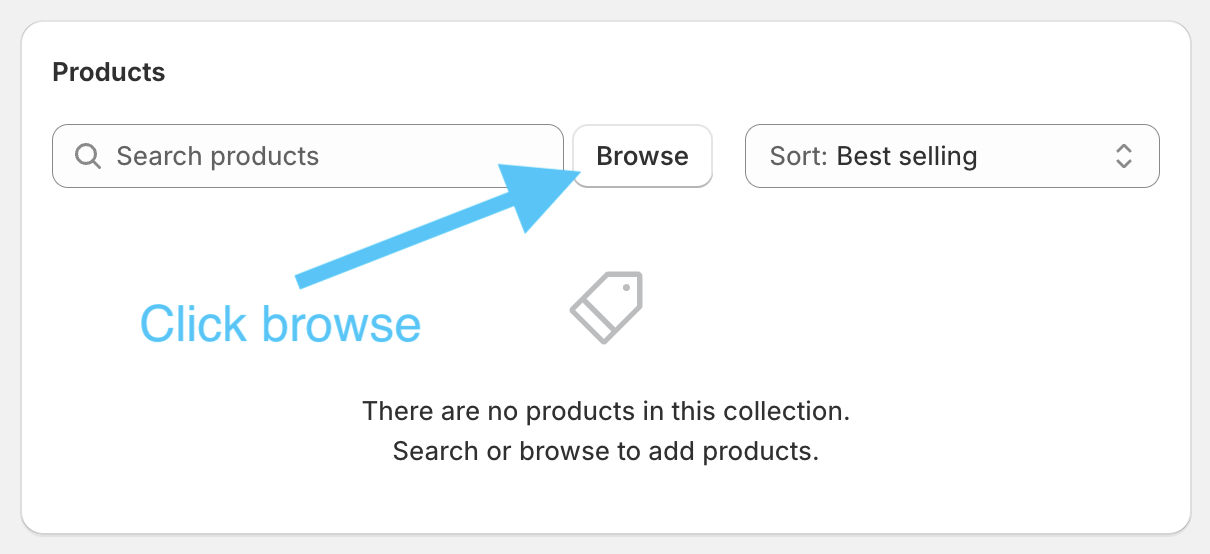
A new tab will open for the created course, allowing you to associate products with the course.
This is optional, doing so will make sure this course is automatically selected for the associated product in Simmer POS:
How to use coursing
Once your courses has been created, you can use them in the Simmer POS extension when adding a product to a ticket.
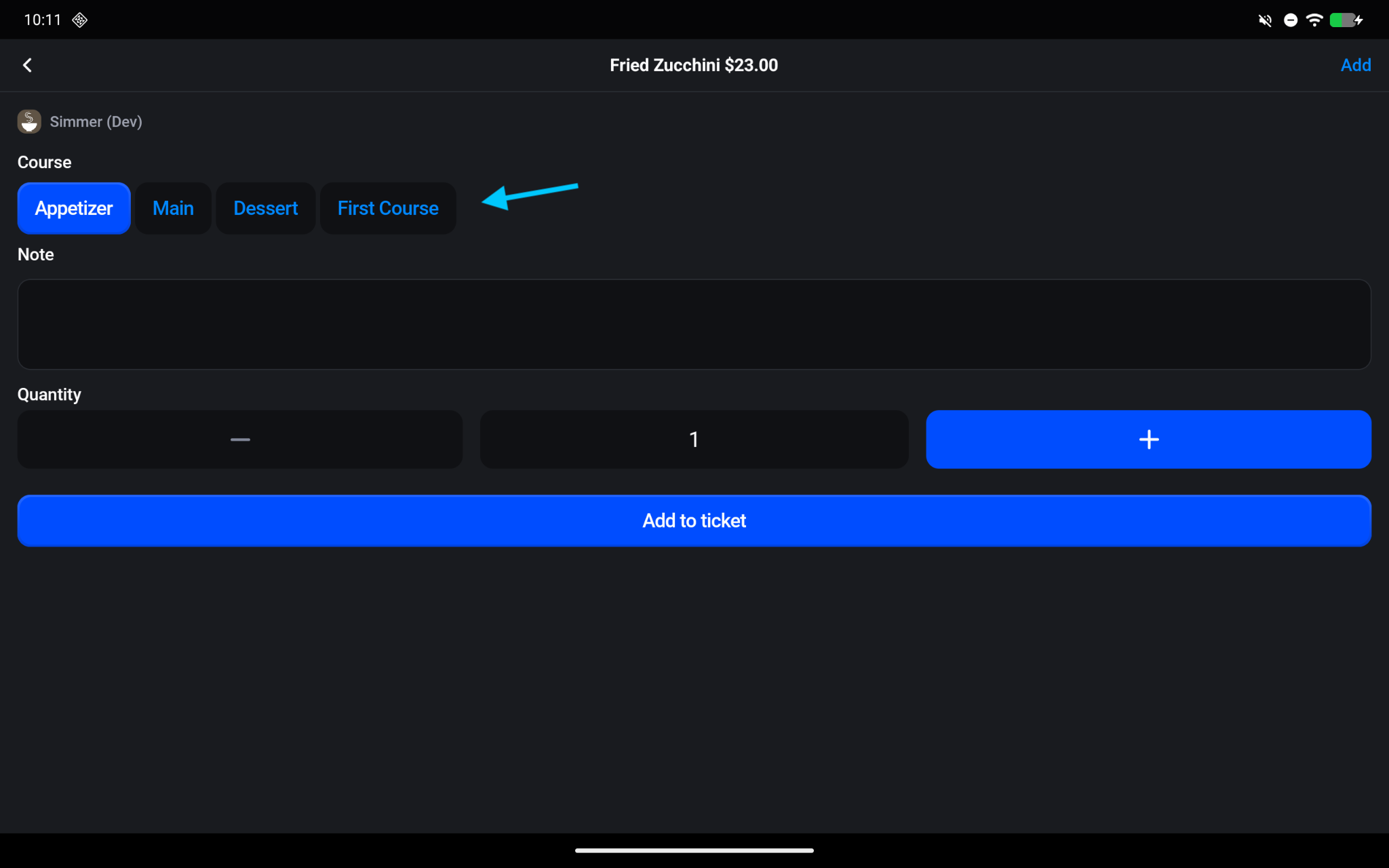
You can also view and edit the line item course via the “Ticket” > “Edit Line Item” screen:
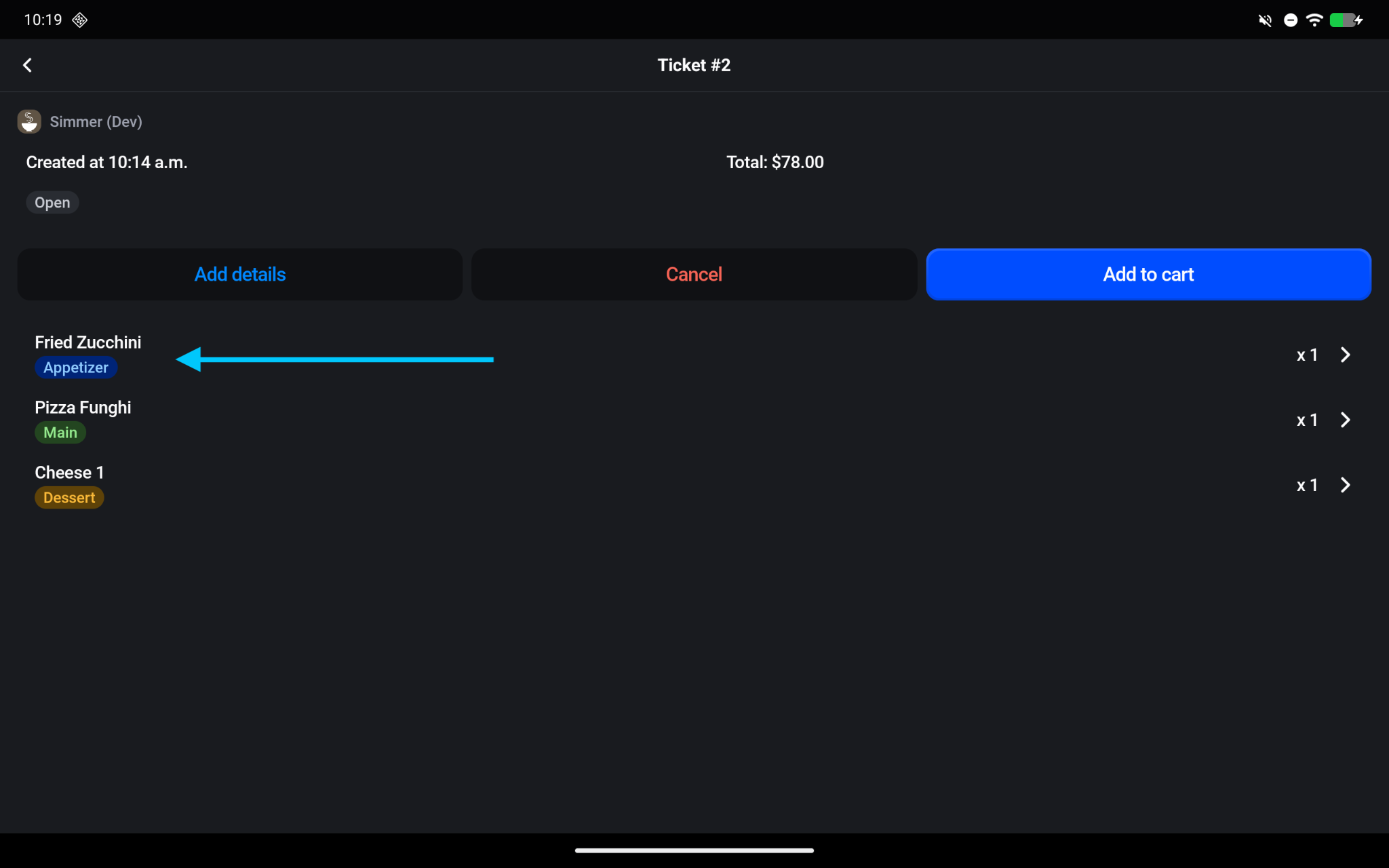
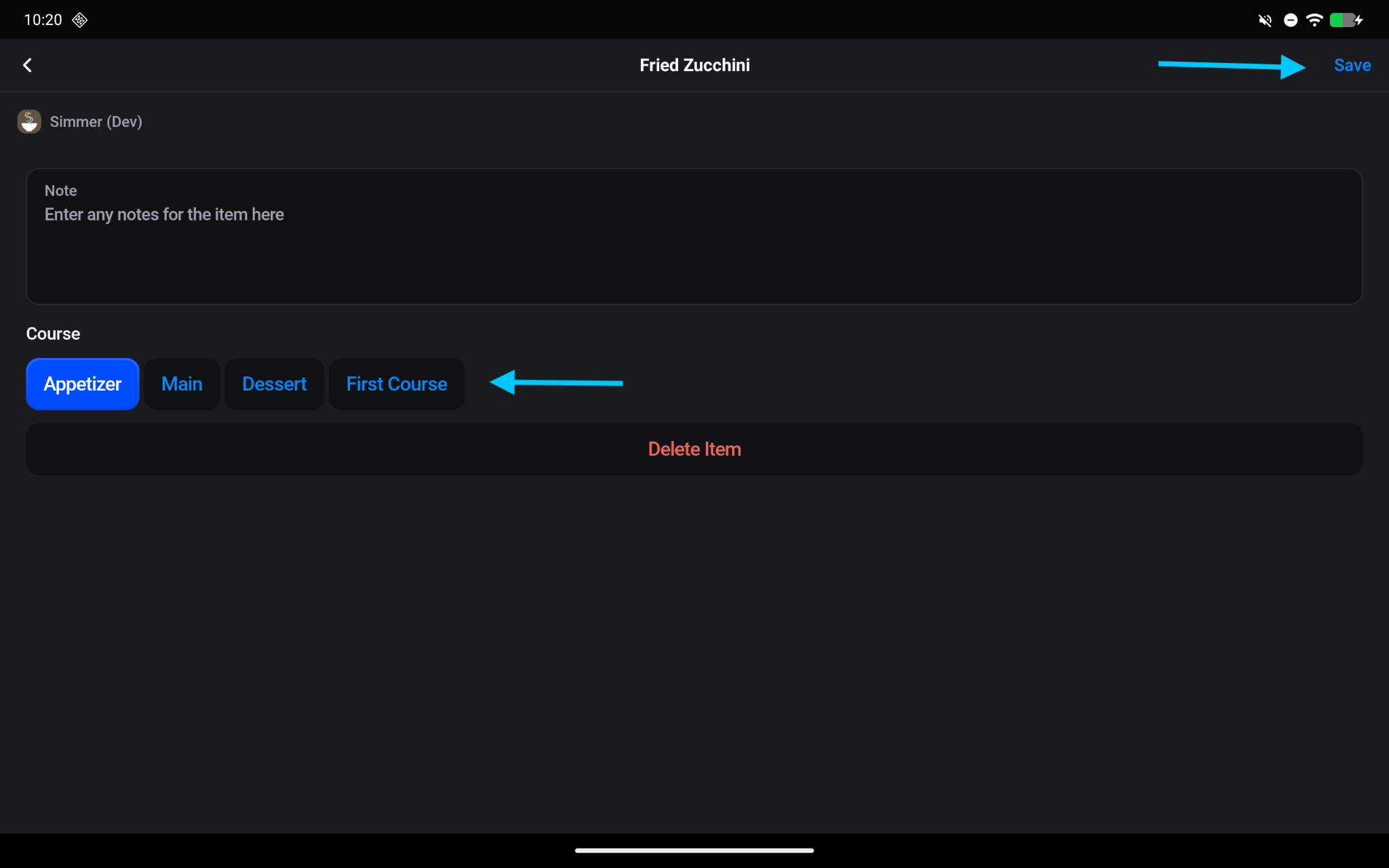
Note - Ensure you click save after making changes to the line item.
Sending courses
When sending tickets to your KDS or printers from the POS you will now have the option to select the course you would like to send:
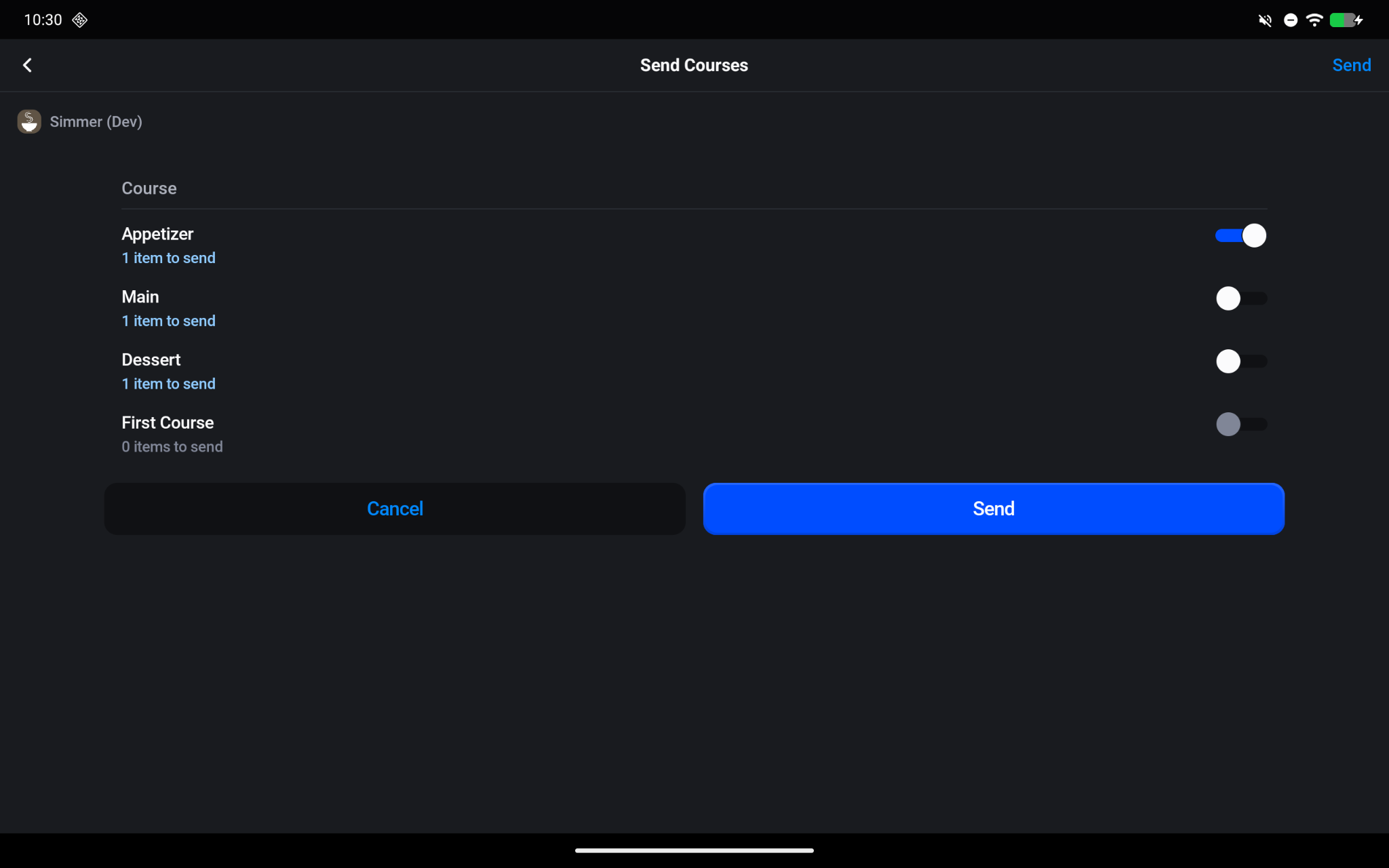
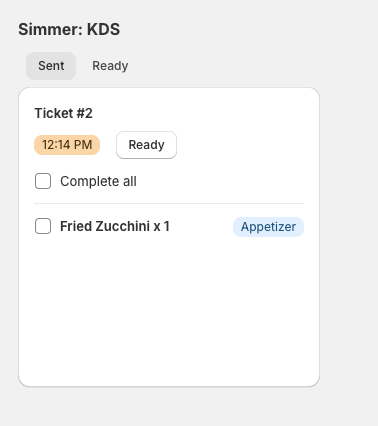
Only the items that are in the sent courses will be displayed on the associated KDS or printed tickets, with their course clearly labelled: